1
Enter a first name and surname
Tap each field and type the name. This guide uses the fictional profile Alex Morgan.
Illustrated guide for Android phones and tablets
Official English Edition
Learn how to enter birth information, create a traditional Thai astrology chart, reuse saved profiles, read a Life Graph, and manage full-version access through Google Play.
Start page
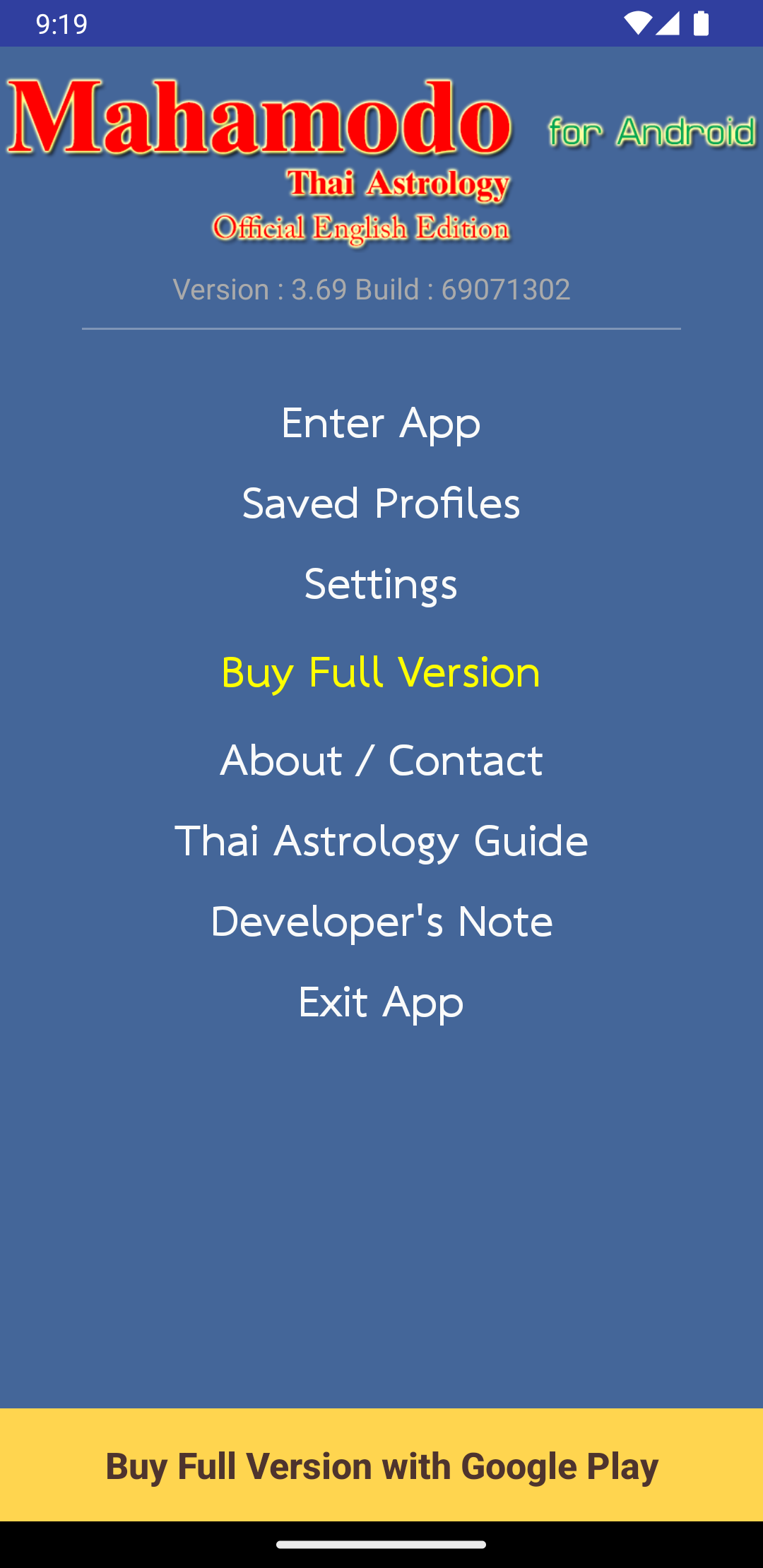
The start page provides access to the program, saved profiles, settings, full-version purchase, support information, and the English Thai Astrology Guide.
Before entering data
The upper fields describe the person's birth. The Current / Transit Date area describes the date and time used for a current or future transit reading.
Fictional example
Tap each field and type the name. This guide uses the fictional profile Alex Morgan.
Tap Birth Date, choose the month, day, and Gregorian year, and then tap OK.
Tap Birth Time, set the hour and minute, and then tap OK. Use the unknown-time option only when the birth time is unavailable.
Choose Thailand for a birth in Thailand or Outside Thailand for an international birthplace. This example uses Thailand.
For a birth in Thailand, type part of the province name, then select the matching result. The example searches for Bangkok.
Create the chart
After the required fields are complete, the app can calculate automatically when a newly selected value completes the form. The Calculate Chart button remains available as a manual fallback.
Use the current transit date or choose another date before calculating.
Wait for the confirmation that the chart has been calculated.
The View Chart / Reading command is now ready.
Results
This opens the Thai Astrology Chart menu.
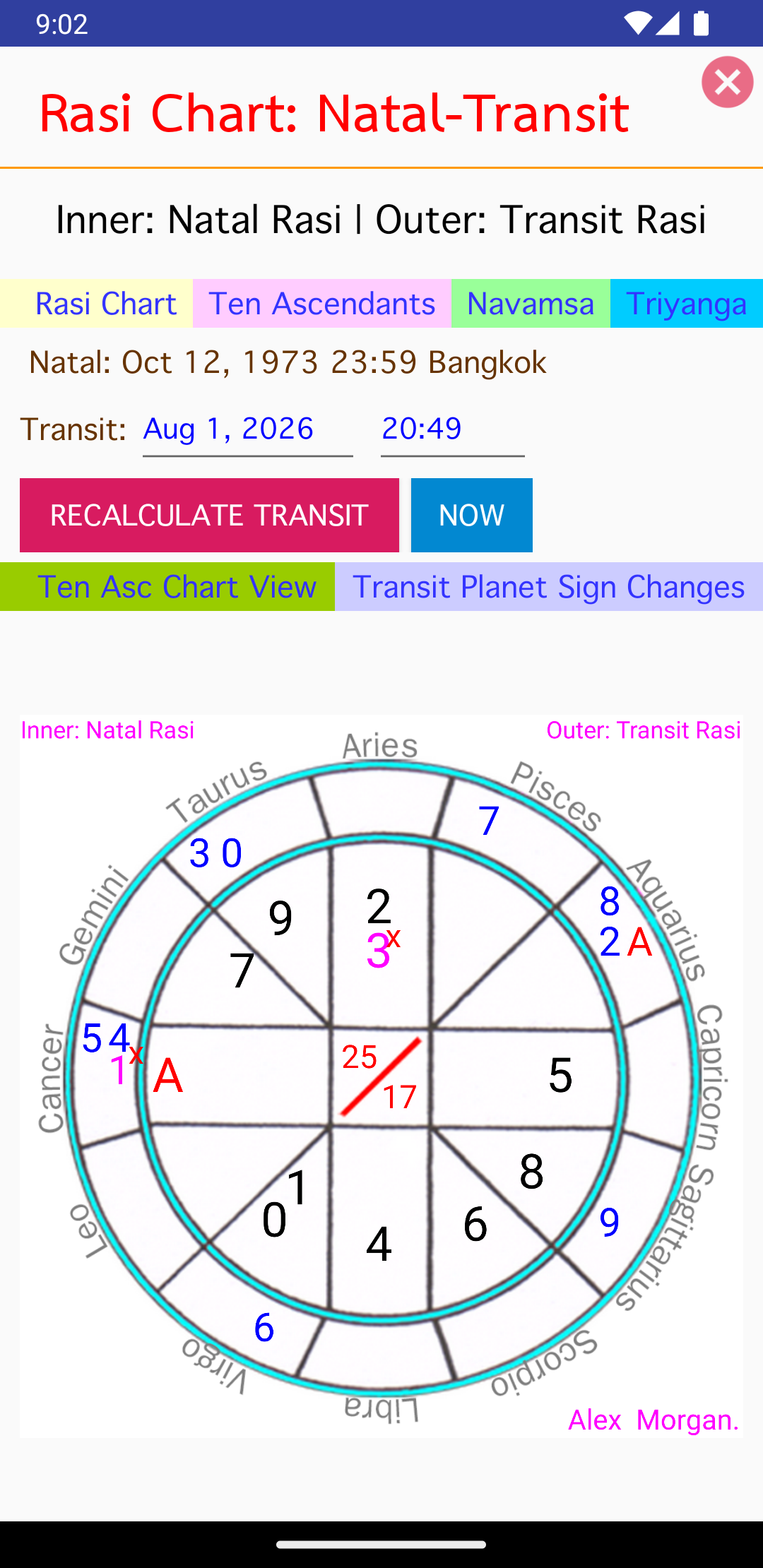
The app opens the chart views based on the calculated birth and transit information.
On the portrait Rasi chart, change only the transit date or time and tap Recalculate Transit. The natal data remains unchanged.
Use existing data
A saved profile avoids retyping the same birth information. Search by name, birth date, or place, then load it into a supported input screen.
Search the list and select the desired profile. Use USE SELECTED when you want that profile to become the current selection.
Select the fictional profile in the dialog and tap OK.
Check the name, birth date, time, and location before calculating or opening the reading.
Additional feature
Then select Life Graph Reading.
Tap Paste to reuse the current fictional profile, or select the date and time directly.
The graph scores Fate, Wealth, Friends, Family, Support, Rivals, Partner, Health, Joy, Work, Status, and Loss.
Read the relationships between life areas and the strength assigned to each area.
Additional feature
This opens the app's Birth-Date Reading screen.
Tap Paste to choose a saved profile, then tap View Reading.
The reading includes traditional illustrated references and a Birth-Year Zodiac Reading.
Entitlement
A Google Play purchase and a support-issued legacy restore code are different entitlement paths. Use the one that matches your situation.
Tap Buy Full Version on the start page or Buy Full Version with Google Play at the bottom. Complete the purchase in Google Play.
The app unlocks only after Google Play reports the English full-version product as purchased. A pending or unfinished payment does not unlock the app.
Install the app with the same Google account used for the original purchase and connect to the internet. The app checks Google Play purchase history before offering another purchase.
A Google Play entitlement is tied to the Google account. It is not a legacy Mahamodo member code.
In Settings, open Support Restore Code only when Mahamodo support has issued a restore code for an existing membership or purchase-recovery case.
Enter the issued Member ID, Postal Code, and Support Restore Code. Do not use this screen for an ordinary Google Play purchase.
The restore dialog contains three fields. Contact Mahamodo support if you do not have all required values or if a previously confirmed purchase does not appear.
At a glance
For later readings, use Saved Profiles or Paste to reuse a profile, then verify the values before calculating.
Troubleshooting
Complete the required birth date, birth time, country, and location fields. Recheck the highlighted field, then select it again or tap Calculate Chart.
Open the date picker again and select the month, day, and Gregorian year. Avoid typing a date in a different order than the picker displays.
Check the internet connection and Google Play account, then try again. Online purchase checks and support restore requests require network access.
The app remains locked until Google Play confirms the purchase. Complete the payment method and allow Google Play time to update the status.
Confirm that Google Play is using the same Google account that made the purchase. Reopen the app with an internet connection so it can check purchase history.
Open Settings, select Support Restore Code, and enter all three values exactly as provided. Contact support rather than guessing a missing value.
For product features, screenshots, installation, and the Google Play link, open the official English-edition app page.
Open Mahamodo Thai Astrology app details